Viewing Results
Interpret factors of safety, critical surfaces, and analysis output.
Interpret factors of safety, critical surfaces, and analysis output.
After a search completes, JSlope draws the results on the canvas and reports the governing factor of safety. The controls in the right-hand Display panel let you change which surfaces are shown, filter by analysis method, and adjust styling.
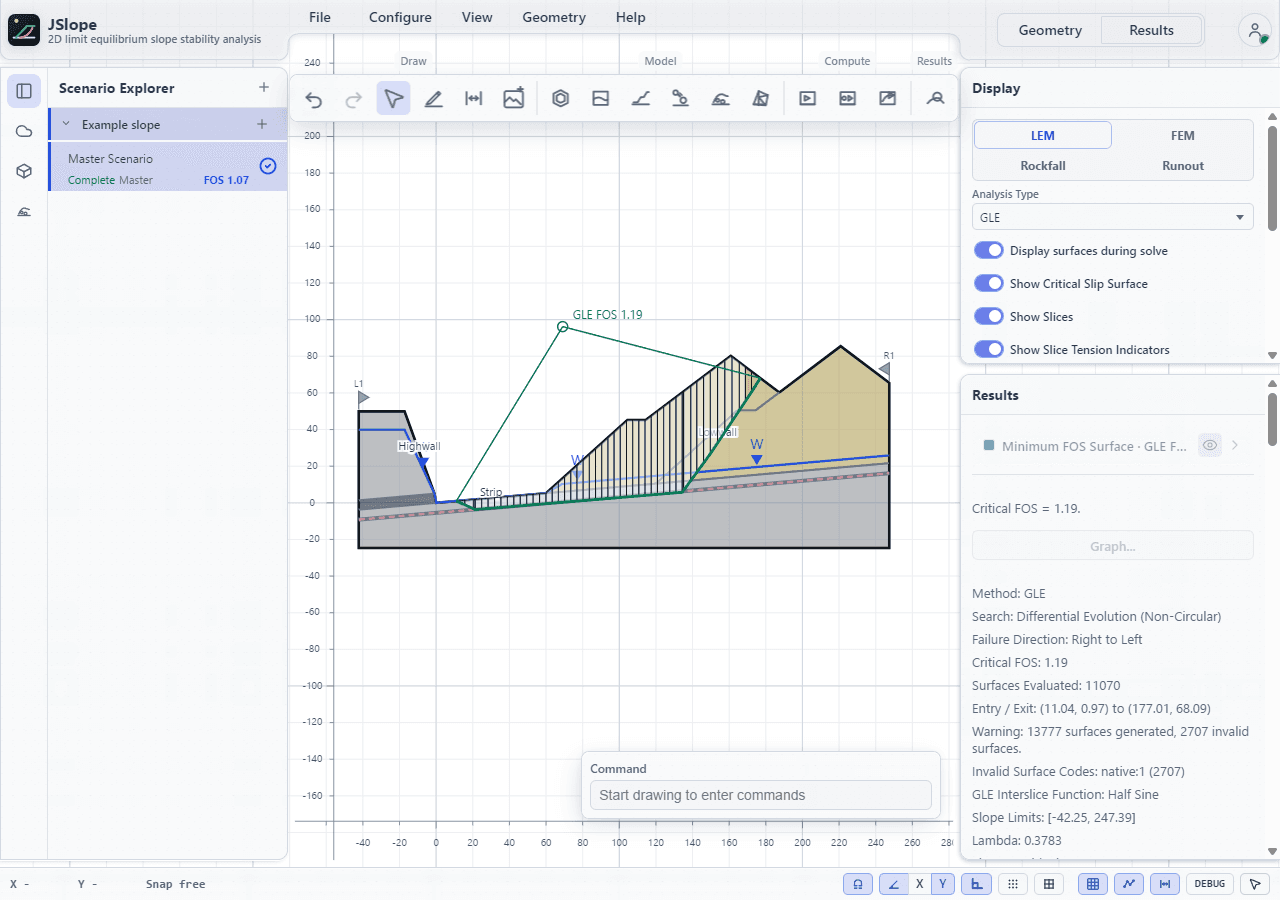
Critical surface
By default the canvas shows the critical slip surface — the trial surface with the lowest factor of safety — for each selected analysis method. With one method selected, method-specific slice and diagnostic overlays are also available. The critical surface is controlled by Critical Slip Surface (on by default).
The governing result is printed in the results readout as:
Critical FOS = <value>A per-iteration breakdown ("Surfaces Per Iteration") lists how many surfaces were evaluated each iteration and the best factor of safety found.
Display controls
The LEM tab of the Display panel lists these switches. An option that refines another is indented beneath it and is available only while that option is on.
| Control | Default | Description |
|---|---|---|
| Critical Slip Surface | On | Draw the lowest-FS surface. |
| Slices | On | Overlay the slice subdivision on the critical surface. Available only while the critical surface is shown. |
| Tension Indicators | Off | Mark tension conditions on the displayed slices. Requires one selected method and visible slices. |
| Line of Thrust | Off | Draw the GLE/Spencer line of thrust. Requires one rigorous method and the critical surface. |
| All Slip Surfaces | Off | Draw every trial surface, not just the critical one. |
| Hide Outside Colour Scale | Off | When showing all surfaces, hide those whose FS falls outside the color-scale min/max. Available only with All Slip Surfaces. |
| FOS Heatmap | Off | Rasterize the stored surface results into an adjustable FOS heatmap. Its cell size appears beneath it while it is on. |
| Surfaces During Solve | On | Draw the trial surfaces while a search runs. |
The Results panel below reports the run status, the result layers and a label/value summary of the displayed result.
Filter Surfaces
Filter Surfaces in the Results section of the dock opens a window that limits which stored search surfaces the canvas draws, by:
| Criterion | Unit | Meaning |
|---|---|---|
| FOS | — | The surface's factor of safety. |
| Sliding Volume | m³/m | Area of the sliding mass between the ground surface and the slip surface, per metre of section width. |
| Max Slice Depth | m | Largest vertical distance from the ground surface down to the slip surface. |
Each criterion is Off, a Minimum, a Maximum or a Range (limits included); enabled criteria must all pass. Volume and depth use the same definition as the search's Minimum/Maximum Area and Slice Depth filters, measured on the stored surface geometry under the exposed ground surface. Apply applies the edited criteria and Clear Filter turns them all off.
The filter applies to All Slip Surfaces, the surfaces Query Surface can pick, and printed drawings. It does not change the heatmap or the critical surface: the critical surface stays drawn even when it fails the filter, and the window says so. While a filter is on, the dock entry is pressed and the Display panel reports how many of the method's stored surfaces pass. The filter is a display preference for the current session; it is not saved with the project and never invalidates a result.
Analysis method filter
The Analysis Type control is a checklist populated from methods that were actually computed. Select one method for its full surface, slice, query, heatmap, and line-of-thrust controls. Select several to draw and list their critical results together; the readout reports each method and the lowest selected FOS.
When several methods are selected, controls that require one unambiguous method — slices, tension indicators, line of thrust, all-surface display, heatmap, and surface query — are disabled. At least one method must remain selected.
Probabilistic results
If a material distribution was enabled for the run, the single-method readout shows the deterministic FOS, P25/P50/P75 sampled FOS, and the valid-sample count. Choose Graph... to compare sampled variables and FOS across stored scenario and method series, make histogram, cumulative, scatter or convergence plots, apply highlight/filter rules, and export selected graph rows to CSV. See Probabilistic Materials. The same window plots any per-slice value; see Slice Data & Diagnostics.
Surface styling
When many surfaces are shown, styling helps separate them visually.
| Parameter | Default | Min | Max | Description |
|---|---|---|---|---|
| Surface Thickness | 1 px | 0.5 | — | Line thickness of drawn surfaces. |
| Surface Opacity | 0.2 | 0.05 | 1 | Opacity of drawn surfaces. |
| Color Scale FOS Min | 0.8 | — | — | FS mapped to the low end of the color scale. |
| Color Scale FOS Max | 2.0 | — | — | FS mapped to the high end of the color scale. |
The color scale runs from warm (low FS) to cool (high FS); see the Factor of Safety Heatmap for the full color mapping.
Invalid surfaces
Trial surfaces that cannot be evaluated are excluded from the result and tallied by reason code in the readout, for example:
Invalid Surface Codes: slice-width-below-minimum (5), slice-material-coverage-gap (2)| Code | Meaning |
|---|---|
slice-width-below-minimum | Required boundaries leave a slice narrower than the minimum width. |
slice-material-coverage-gap | A slice base falls in a region with no defined material. Check that material regions tile the domain. |
Display modes
Slope analysis uses these result tabs in the shared application:
- LEM — the standard limit-equilibrium results described above. For a transient groundwater scenario, the slip surfaces are drawn over the selected stage's phreatic surface.
- Groundwater — finite-element seepage contours (head, pressure or flow), groundwater queries and, for transient runs, Darcy flux vectors.
- Stress — elastic stress contours and the deformed mesh.
After a transient groundwater solve, a compact stage player appears in the Workspace pane, to the right of the terminal, in the LEM and Groundwater tabs. Step or play through the initial state and each stage to see its phreatic surface and factor of safety. LEM Compute and Groundwater Solve both calculate the FOS of the initial state and of every stage with Calculate FOS that the groundwater run reached. The stage table gives the reason for any stage without a FOS. Stress Solve uses the pore pressures of the stage the player shows.
The same results can be read as text, checked and exported as CSV from the terminal.