Interface Tour
A guided tour of the JSlope workspace: canvas, panels, and the modeling-to-results workflow.
The JSlope workspace is built around a central drawing canvas with a left scenario panel, a floating geometry toolbar, a top menu, and modal dialogs for detailed property editing. This page describes each region and how they fit together.
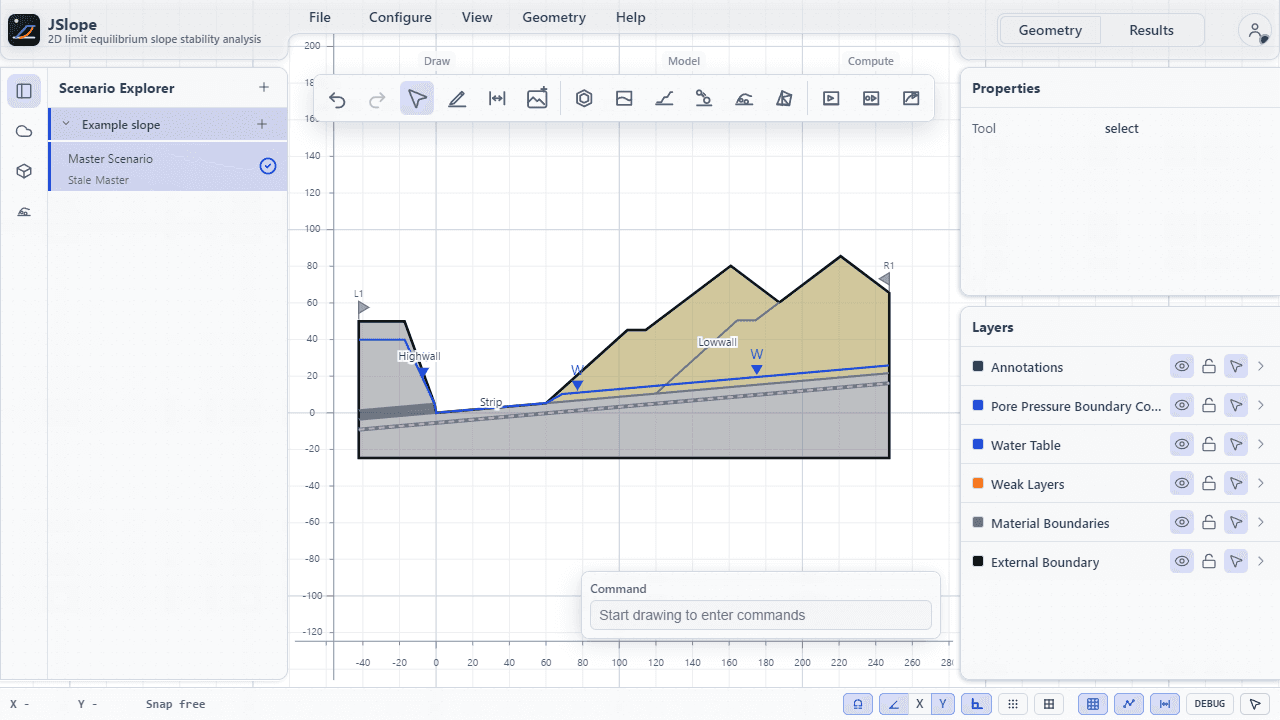
Workspace layout
- Top bar — file operations (new project, open, save, import, export) and project-level controls.
- Left rail — switch between the Scenario Explorer, Cloud Materials, and the 3D DXF Import workspace.
- Floating toolbar — drawing, modelling, and compute tools.
- Right panel — properties for selected geometry and layer visibility; display controls and result readouts in Results mode.
- Central canvas — the drawing surface where geometry is created, edited, and where results are displayed.
- Modals — dialogs for material properties, support properties, search settings, and solver progress.
Workspace tabs
Two top-level tabs switch the workspace mode:
| Tab | Purpose |
|---|---|
| Geometry | Build and edit the model: boundary, regions, water, loads, supports, and analysis settings. |
| Results | View the computed critical surface and factor of safety after running an analysis. |
The geometry toolbar
In Geometry mode, the floating toolbar groups the drawing and analysis tools:
| Group | Contents |
|---|---|
| Draw | Select, draw, dimension, and reference-image tools, plus undo and redo. |
| Model | External Boundary, Material Boundary, Slope, Rockfall, Runout, and Finite Element tools. |
| Compute | LEM Compute, Rockfall Compute, and Runout Compute. |
Open Slope for slope-specific geometry. Define material and support properties through Configure → Define Properties. Search and analysis options are under Configure → Scenario Settings.
The canvas
The canvas is where all geometry is drawn and edited. It supports standard CAD navigation:
| Action | Input |
|---|---|
| Pan | Middle-click and drag. |
| Zoom | Scroll wheel (zooms toward the cursor). |
| Suppress snapping | Hold Alt while drawing or editing. |
| Insert a point or id into the terminal | With the terminal focused, Alt+click a point or Alt+Shift+click an object. |
| Context menu | Right-click on or near an entity. |
The right-click context menu provides in-place editing actions such as Move Vertex, Insert Vertex, Delete Vertex, Move Segment, Move Entity, Assign Material, and Edit Materials, depending on what is under the cursor.
Snapping
A status bar along the canvas exposes snapping toggles, including snap to object vertices and segments, snap to configured angles, ortho snapping, grid-point snapping, and grid-line snapping. Holding Alt temporarily disables snapping without changing these toggles, which is useful for placing a point freely.
Modals
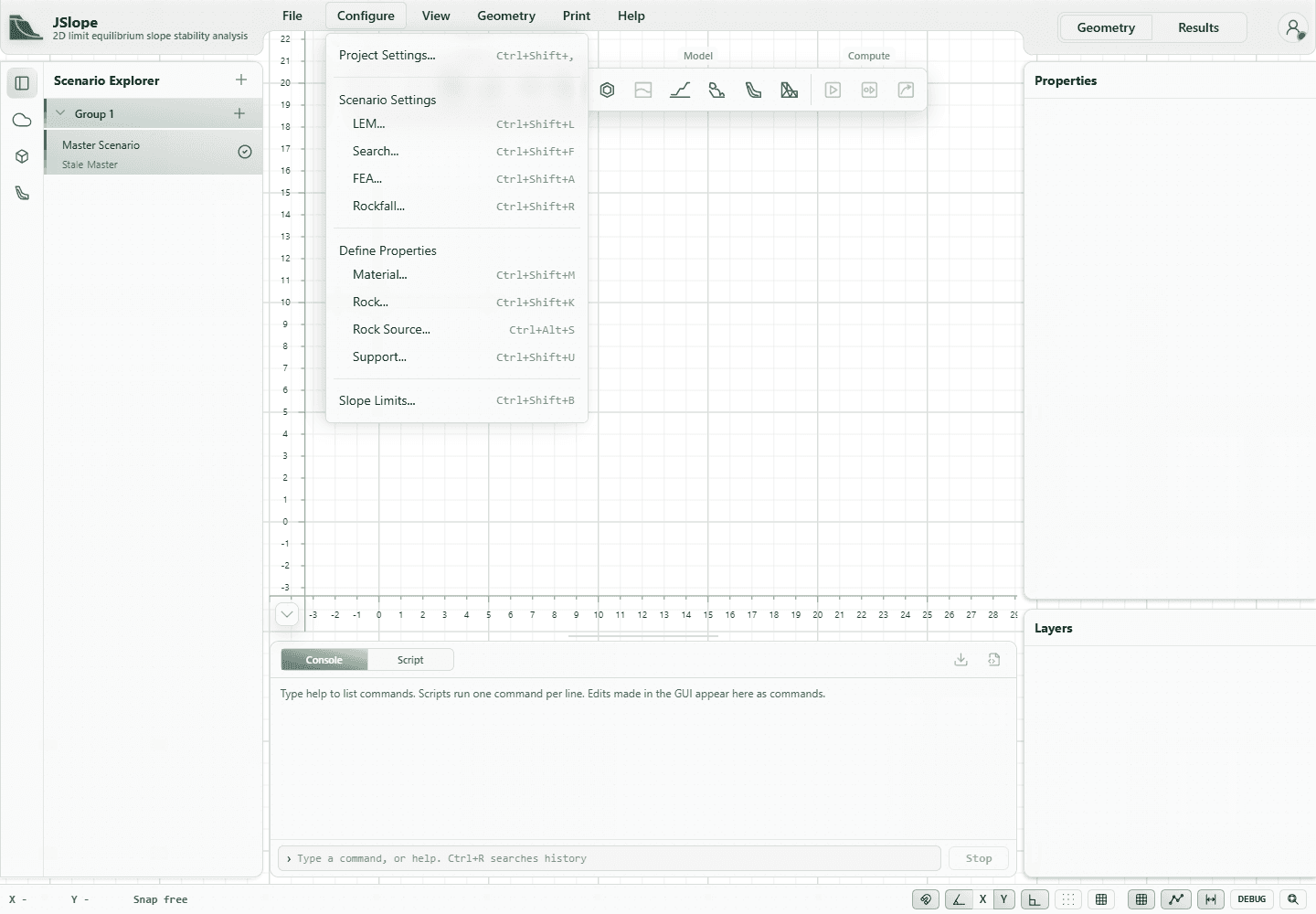
Detailed editing happens in modal dialogs opened from the toolbar, Configure menu, or context menu:
| Modal | Opened from | Purpose |
|---|---|---|
| Define Properties: Material | Configure → Define Properties → Material | Edit strength, unit weight, and water properties for each material. |
| Define Properties: Support | Configure → Define Properties → Support | Choose support type and capacities. |
| Scenario Settings | Configure menu | Configure LEM analysis, search/refinement, loads, and FEA for the active scenario. |
| Project Settings | Configure menu | Configure project-wide behavior, including Soil Profile material regions. |
| LEM Solver | Compute | Shows live search progress while the analysis runs. |
Typical workflow
- Draw the external boundary.
- Add material regions and assign materials.
- (Optional) Add a water table, loads, and support.
- Configure the search method, analysis method, and slope limits from the Configure menu.
- In the Scenario Explorer, leave wanted scenarios enabled and disable any cases to skip.
- Press LEM Compute. The app computes every enabled scenario and restores the scenario that was active before the batch.
- Read the critical factor of safety and display controls on the Results tab.
See the Quick Start for a concrete, step-by-step walkthrough.