Quick Start: First Analysis
Build a simple slope model and run your first factor-of-safety analysis end to end.
This tutorial walks through a complete analysis: draw a slope, assign a material, optionally add a water table, choose a search and analysis method, and read the critical factor of safety. It uses the default project that opens when you start JSlope.
All work happens in the Geometry workspace tab (selected by default) until the final step, when results appear on the Results tab.
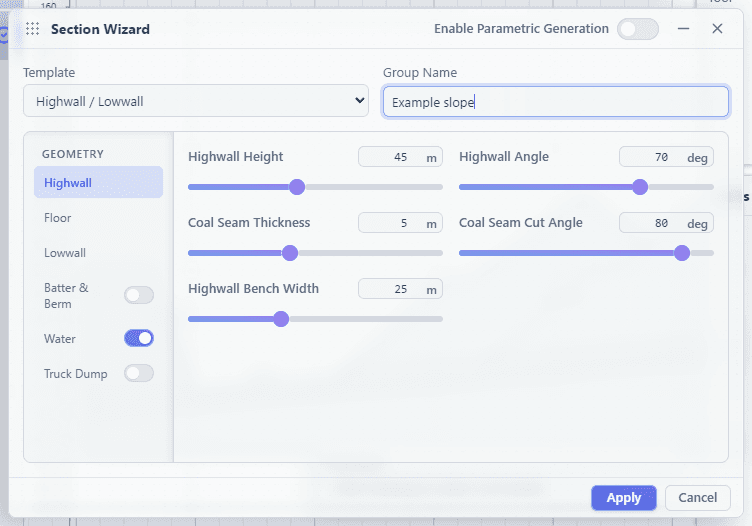
1. Draw the external boundary
The external boundary defines the full cross-section of soil to be analyzed.
- In the geometry toolbar, open the External Boundary group and choose New External Boundary.
- Click on the canvas to place each vertex of the slope profile, working around the full closed outline (ground surface, slope face, and base).
- Close the boundary to finish the polygon.
Hold Alt while clicking to place a vertex freely without snapping. Use the scroll wheel to zoom and middle-click to pan while drawing.
2. Define and assign materials
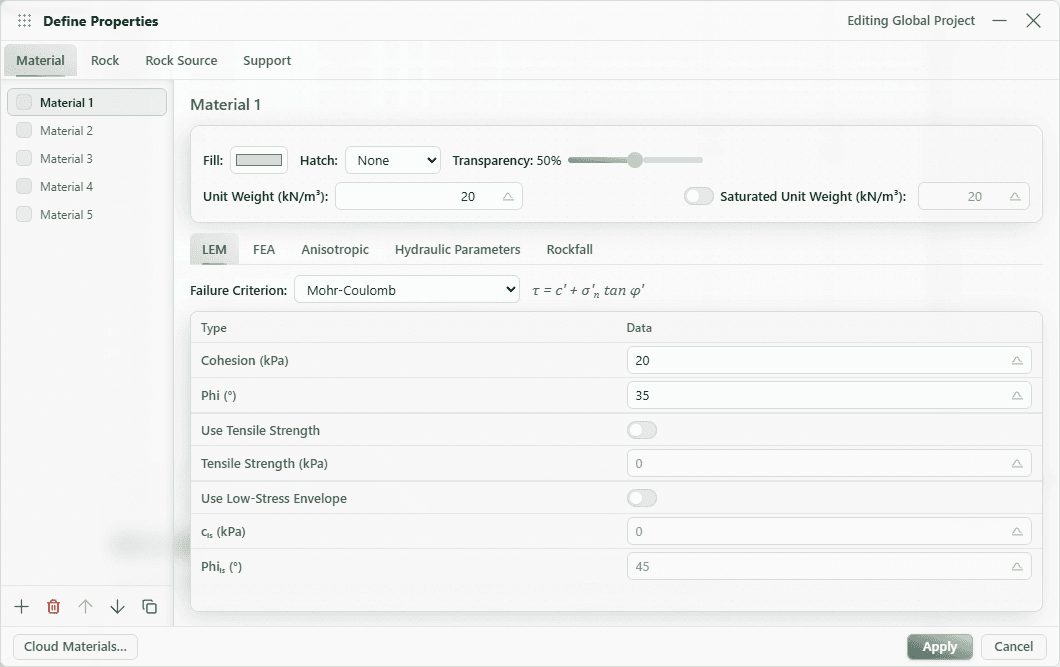
A new model starts with a default material. To edit its properties or add more:
- Open Configure → Define Properties → Material.
- Set the strength model (for example, Mohr-Coulomb), unit weight, cohesion, and friction angle. Choose Apply when done.
- If the model has more than one material region, right-click a region on the canvas and choose Assign Material to map each region to a material.
For a single-material slope, the default material assignment is sufficient.
3. (Optional) Add a water table
To include pore pressure from a phreatic surface:
- Open Slope → Water → New Water Table in the geometry toolbar.
- Click along the canvas to trace the water-table line from one side of the model to the other.
- Finish the open line with Enter.
The pore fluid unit weight defaults to 9.81 kN/m³. See Units & Conventions for the sign and unit conventions.
4. Choose the search method
- Open Configure → Scenario Settings → Search.
- Set Search Method. For a first run, Adaptive Circular Search finds circular surfaces automatically.
- Set Failure Direction (Left to Right or Right to Left) to match the downslope direction of your section.
5. Choose the analysis method
- Open Configure → Scenario Settings → LEM. In Analysis Method, tick one or more solvers. Bishop Simplified is a good starting point.
- You may select several methods at once (for example Bishop, Spencer, and GLE) to compare results in a single run.
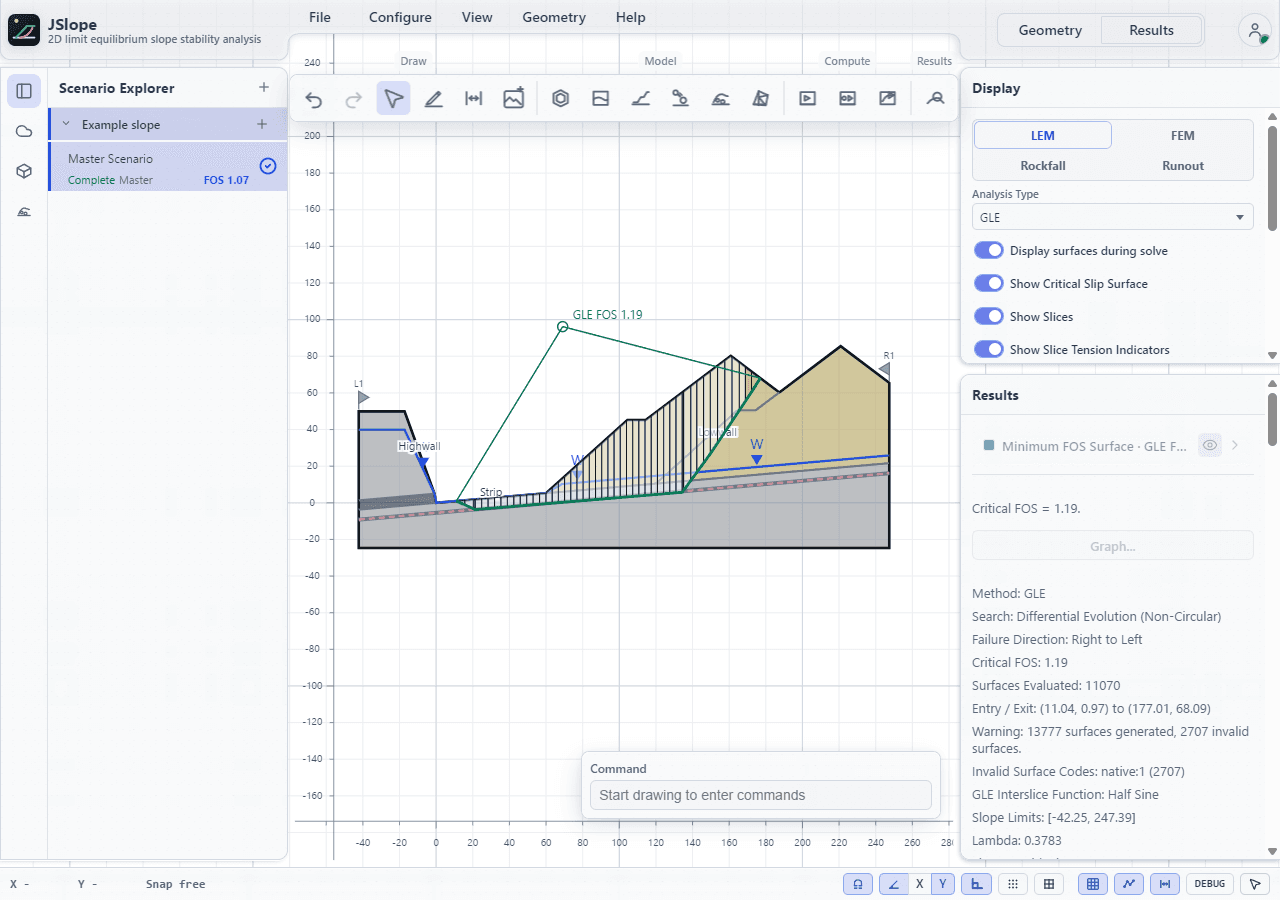
- Review Target Number of Slices; the example section shown below uses 50.
6. Run the analysis
- Press LEM Compute in the geometry toolbar.
- The LEM Solver dialog opens and shows live search progress while the surface search runs. The button reads Computing... during the run.
- When the search completes, the workspace switches to the Results tab.
7. Read the result
On the Results tab, the critical slip surface is drawn on the canvas and the critical factor of safety is reported. If you selected multiple analysis methods, a factor of safety is reported for each.
Results are cached per scenario and keyed to the model inputs. If you change nothing, re-running reuses the cached result; any change to geometry, materials, water, loads, or settings invalidates the cache and triggers a fresh computation.
Next steps
- Add loads and support to refine the model.
- Try non-circular and metaheuristic searches under slip surfaces.
- Organize variations as scenarios to compare cases side by side.