Getting Started
Build the minimum valid JRunout model and run a first 2D simulation.
This workflow creates the smallest useful Rockfall model in the shared JSlope/JRunout workspace.
Before you compute
A valid scenario needs all of the following:
- A closed External Boundary with at least three points.
- A Rockfall material for every segment of the exposed terrain surface.
- At least one valid Rock definition.
- At least one Source definition with one or more Rock allocations.
- At least one placed Rock Source using a valid Source definition.
- Valid Rockfall simulation settings.
- The scenario enabled in the Scenario Explorer.
If a Berm is present, it must also have a Rockfall material and both feet must remain connected to the terrain surface. Berm footprints cannot overlap.
Run a first simulation
1. Build the cross-section
Create an External Boundary in the Geometry workspace. Rockfall uses the upper, exposed path between the boundary's leftmost and rightmost points as collision terrain; the lower closure is not part of the Rockfall surface.
Add material regions so each exposed boundary segment has a material beside it. You can override any segment explicitly by selecting that External Boundary segment and choosing Rockfall Material Override in the inspector.
2. Configure the contact material
Open Configure → Define Properties → Material. Select the material, then use its Rockfall settings:
- Lumped Mass: normal restitution (Rn), tangential restitution (Rt), Rockfall friction, and optional impact-angle roughness.
- Rigid Body: normal restitution, Rt, dynamic friction, and rolling friction.
The relevant block is chosen at solve time from the scenario's simulation method.
3. Define a Rock and Rock Source
Open Configure → Define Properties → Rock and set at least mass and density. If you plan to use Rigid Body, choose the required shape as well.
Then open Configure → Define Properties → Rock Source. Add the Rock to the Rock Source population, choose the number of rocks, and set the launch conditions. A Rock Source definition can allocate several Rock types.
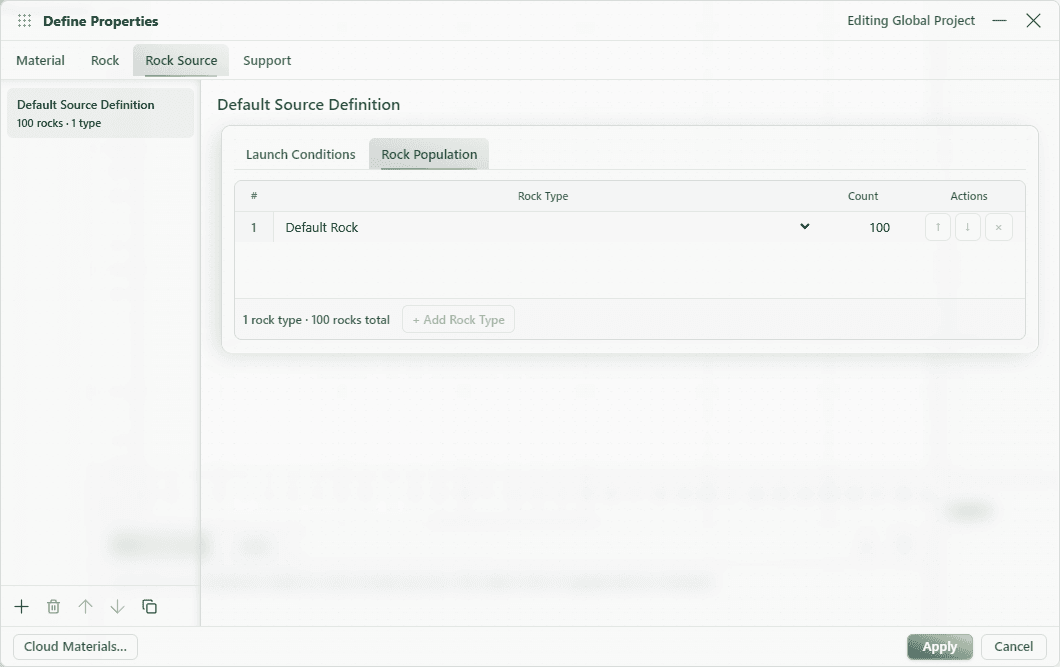
4. Place the Rock Source
Open the Geometry toolbar's Rockfall group and choose Point Source. Click its launch location. A new placed Rock Source initially uses the first Source definition; select it to assign a different Source Definition.
Optionally place a Berm, Collector, Barrier, or Toe Point.
5. Choose simulation settings
Open Configure → Scenario Settings → Rockfall → Simulation. Choose Lumped Mass or Rigid Body, then review the time step, stopping thresholds, sampling method, random seed, and contact-behavior options.
Scenario Settings can apply one Rockfall settings patch to several selected scenarios.
6. Compute
Enable every scenario you want to include, then choose Rockfall Compute in the Geometry toolbar. Opening the Rockfall Solver starts the batch immediately. The solver processes valid enabled scenarios and returns to the scenario that was active when the batch began. In production, Rockfall settings, geometry, and Cloud compute are free during early access with a verified account. Browser and Native compute require JRunout licence permissions independently of JSlope.
The run can be cancelled from the solver window. Cancelling stops the current batch and discards the interrupted run.
7. Read the results
While the batch is running, the Rockfall Solver shows Rocks, Stopped, Out of bounds, and Maximum runout for the active run. The window remains open when the batch finishes so you can review its diagnostics and any scenario-specific preflight errors. After you close it, those diagnostics are not a separately reopenable results table.
After computation, open Results → Rockfall. Start with:
- Stopping Distribution for a static terrain-aligned result view;
- Rockfall Graphs for histogram and cumulative-frequency views;
- All Rocks playback when WebGPU is available.
Units and signs
| Quantity | Unit or convention |
|---|---|
| Geometry and runout | metres (m) |
| Time and time step | seconds (s) |
| Velocity | metres per second (m/s) |
| Rock mass | kilograms (kg) |
| Rock density | kilograms per cubic metre (kg/m³) |
| Angular velocity | radians per second (rad/s), clockwise positive in the editor |
| Initial rotation | degrees, clockwise positive in the editor |
| Barrier capacity metadata | kilojoules (kJ) |
Save .jws to preserve a valid completed Rockfall run with
its model. Browser autosave preserves inputs but not computed trajectories,
so recompute after a reload that was recovered only from browser autosave.
Export distribution or impact CSV when you need a portable table.