Rocks & Sources
Define reusable Rock populations and launch conditions, then place Rock Sources in a scenario.
JRunout separates reusable definitions from scenario geometry:
- A Rock definition describes mass, density, shape and appearance.
- A Source Definition specifies the rock population and initial conditions.
- A Point Source or Line Source places that definition in a scenario and determines where the rocks start. These placed objects are called Rock Sources.
Rock and source definitions are shared across the project. Placed rock sources belong to their scenario.
Rock definitions
Open Configure → Define Properties → Rock. You can add, duplicate, reorder, rename, and delete Rock definitions. A Rock definition that is still allocated by a Source Definition cannot be deleted.
The physical inputs are:
- Mass (kg)
- Density (kg/m³)
- Shape
Mass and density must be positive. Both simulation methods use mass and density. Only Rigid Body uses the selected shape as contact geometry.
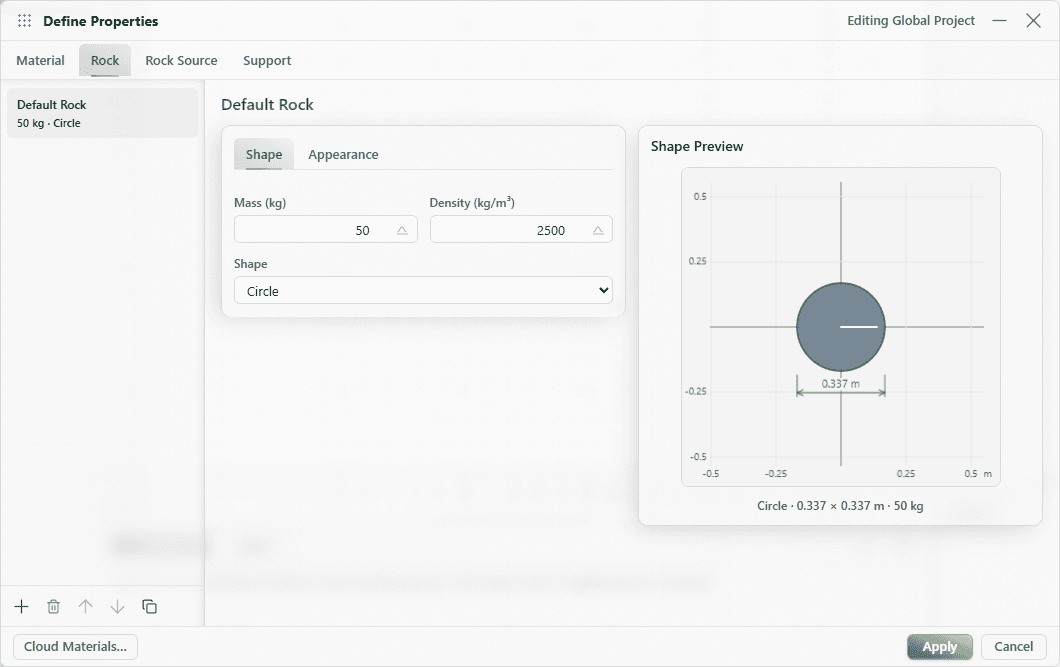
Available shapes
The shape catalog includes:
- custom polygon, sphere, and circle;
- regular triangle, square, pentagon, hexagon, and octagon;
- rectangles and ellipses in 5:6, 2:3, and 1:2 proportions;
- fourth- and sixth-order superellipses in 1:1, 2:3, and 1:2 proportions.
A custom polygon requires at least three x, y vertices. Use exact custom
size keeps the entered custom coordinates as the rigid outline; otherwise the
shape is sized from the Rock's physical properties. The Rigid Body transfer
currently accepts at most the first 96 custom vertices.
Shape and custom vertices affect Rigid Body simulation. Lumped Mass transfers launch state, mass, and density, but not the selected geometric shape.
The Appearance tab controls fill, outline, transparency, and a direction indicator. These fields affect result display, not the physical solve.
Source definitions
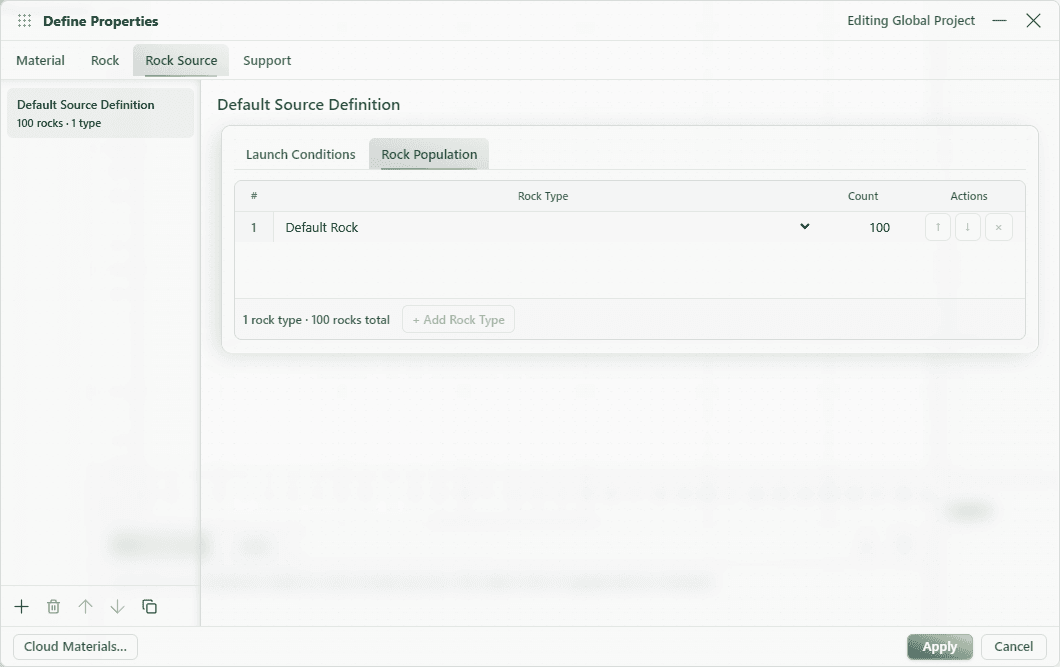
Open Configure → Define Properties → Rock Source. The two editor tabs are:
- Rock Population: allocate one or more Rock definitions and enter a positive integer count for each.
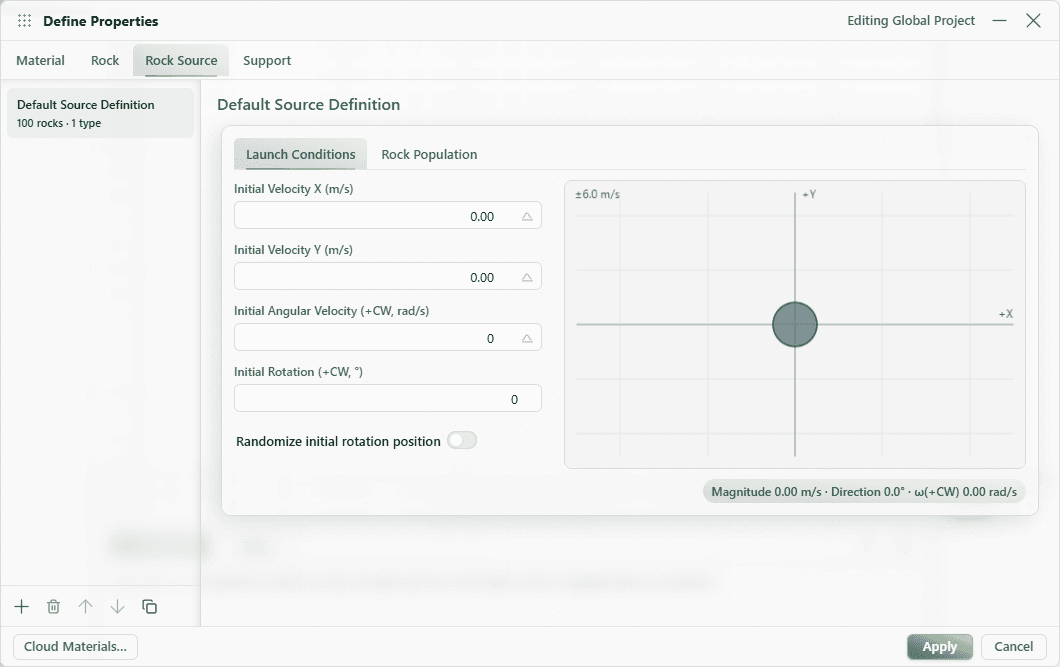
- Launch Conditions: set initial X/Y velocity, angular velocity, initial rotation, and whether to randomize the starting rotation.
The editor uses clockwise-positive angular velocity in rad/s and clockwise-positive initial rotation in degrees. The launch preview shows the vector, uncertainty envelope, Rock orientation, and angular motion.
Deleting a Source definition is blocked while a placed Rock Source in any scenario references it.
Place and edit Rock Sources
- Create at least one valid Source definition.
- In the Geometry toolbar, choose Rockfall → Point Source or Rockfall → Line Source.
- For a Point Source, click the launch location. For a Line Source, click its vertices and press Enter or double-click to finish.
- Select the placed Rock Source and choose its Source Definition in the inspector.
The tool remains armed after placement so you can add another Rock Source. Press Esc or right-click to finish.
A scenario needs at least one placed, populated Rock Source to compute. Every Rock allocation becomes that many independent simulation jobs. The random seed is combined with the Rock Source and Rock ordinal, so unchanged inputs produce a stable, repeatable sample sequence.
Probabilistic Rock and launch inputs
Use the distribution button beside a supported numeric field. Rock mass, density, launch X/Y velocity, and angular velocity support:
- Normal — standard deviation around the entered mean;
- Gamma — positive shape and scale parameters;
- Uniform — an explicit ± range around the entered mean;
- optional absolute minimum and maximum bounds.
Initial rotation itself is deterministic, with a separate option to randomize the starting orientation. See Probabilistic Inputs for cutoff and sampling details.